If you plan to move the installation to another computer, you must reset the activation through the customer area before you can activate the license again on the new computer.
In some (rare) cases, it can also happen that the Hardware ID of your computer changes unexpectedly. Most of the time, this is linked to events like changes of hardware (hard drive etc.) or major Windows or BIOS updates. In this case, you must also reset the activation, and re-download/-activate the license on your computer using the License Manager.
First, log into the customer area, go to the My Licenses page, and open the details of the license you are going to reset. Scroll down to the Activation section, and you will see that the license is currently activated, and for which Hardware ID:
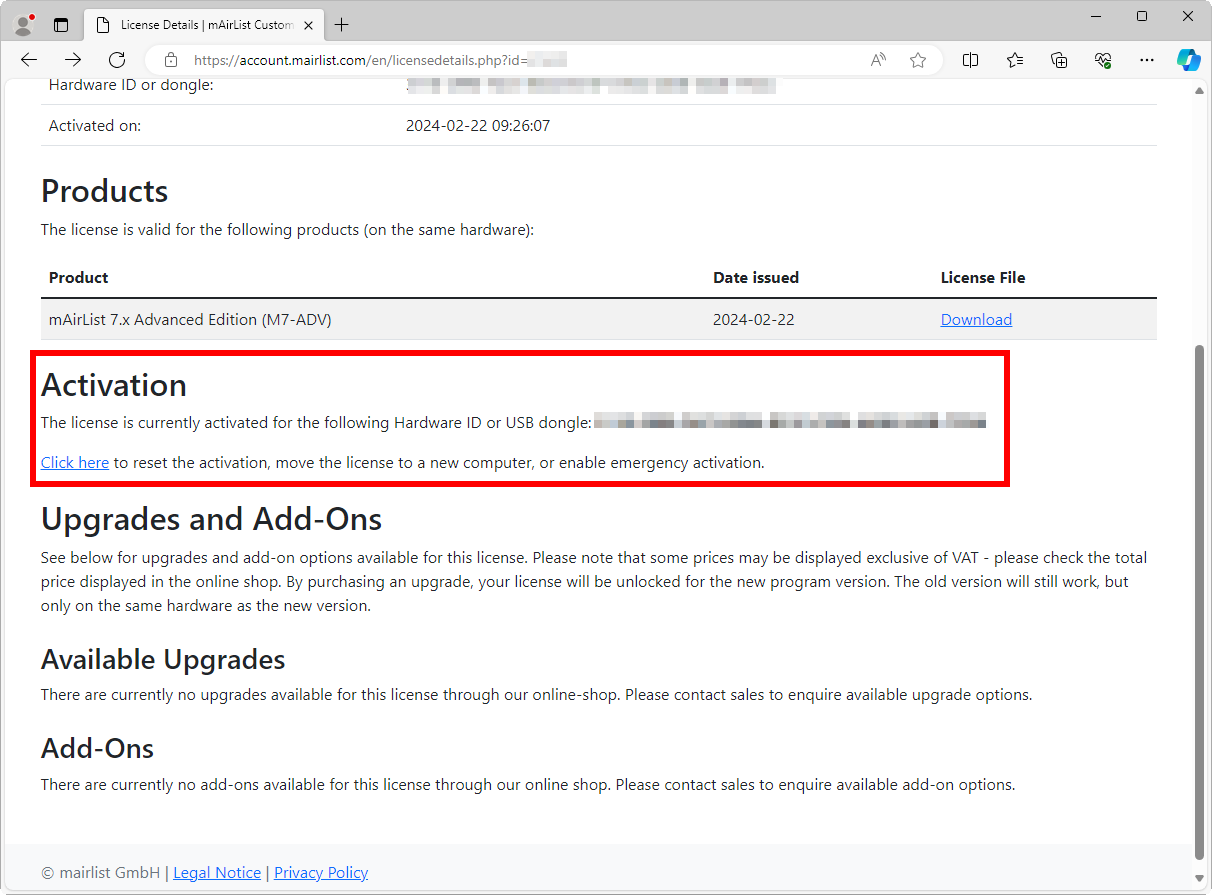
Click the link, and you will be taken to the Reset Activation form:
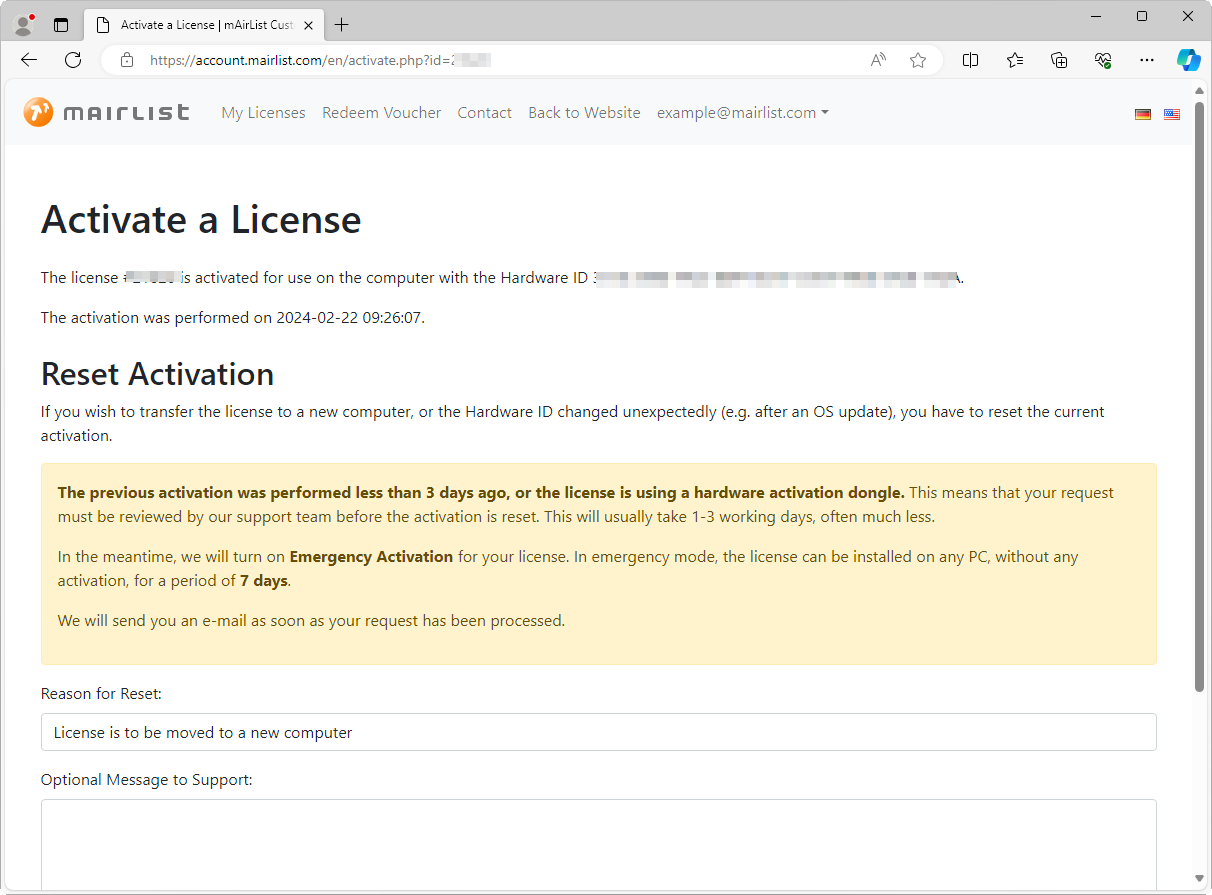
Please read the information carefully. In particular, when you are moving to a new computer, you must make sure that the software is removed from the old one.
After you confirm, the activation will be reset, and you can use the License Manager again to download/activate it (see above).
Note: If you reset your license frequently, it may happen that our support staff will first have to review your request. In this case, the system will first issue an Emergency Activation, which will allow you to use the license on any computer for seven days. As soon as your reset request has been approved by support, you will receive an e-mail notification. Don’t forget to activate the regular license again before the emergency activation has expired!