Symptom
In rare occasions, a freshliy installed copy of mAirList fails to start, and Windows displays the following error message:
The application was unable to start correctly (0xc000007b). Click OK to close the application.
This is usually caused by missing or corrupted copies of Microsoft Visual C++ Redistributable (vcredist) installed on your system. While mAirList.exe itself doesn’t require these packages (mAirList is written in Delphi, not Visual C++), we use and ship a number of DLLs that require vcredist.
Starting with version 7.x, the mAirList setup checks if these packages are already installed on your computer, and if not, downloads and installs them as part of the setup process.
In certain situations, this automatic installation can fail, for example when the download is not successul. We have also seen cases where the packages were already installed, but corrupted in some way.
Currently (as of December 2025), the DLLs shipped with mAirList require the following two vcredist packages:
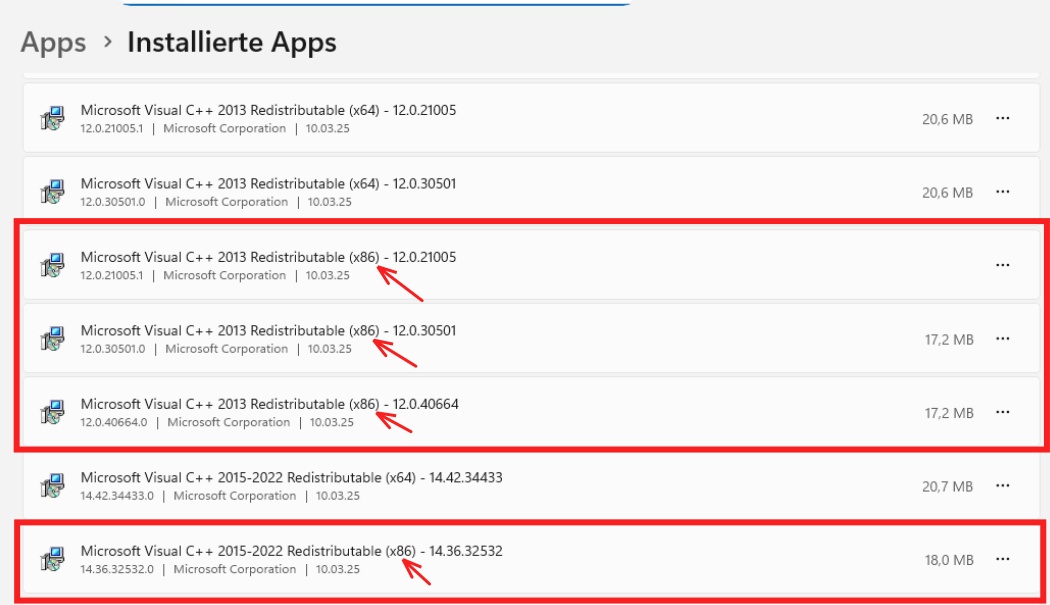
- Microsoft Visual C++ 2013 Redistributable (x86)
- Microsoft Visual C++ 2015-2022 Redistributable (x86)
Note that the 32-bit (x86) versions are the required ones, even on 64-bit Windows, as mAirList is a 32-bit application.
You can check whether these packages are installed in Windows Control Panel. Sometimes there is even more than one version of the same package installed:
Solution
The solution is to uninstall the two vcredist packages mentioned above (2013 and 2015-2022, in the x86 version), and then reinstall them.
Uninstall
To uninstall vcredist, just use Windows Control Panel, click the … button and select “Uninstall”. Repeat for all relevant packages. Leave other vcredist versions, and x64 versions, untouched.
It is unclear whether a reboot is actually required, but you may want to reboot just to be safe.
Reinstall
There are three ways to reinstall the required vcredist packages:
1. Reinstall via mAirList setup
The easiest way is to run the mAirList setup again (and install on top of your existing mAirList installation). The installer should detect the missing vcredist packages and download and install them again.
2. Reinstall via WinGet
WinGet is a package manager included in modern versions of Windows. It can be used to install the missing packages from the Windows command line:
winget install Microsoft.VCRedist.2013.x86 Microsoft.VCRedist.2015+.x86
3. Install manually
You can also download the two vcredist packages manually from the Microsoft website, and install them through their respective setup.
Make sure you download the 32-bit (x86) version of the packages (usually named vcredist_x86.exe)!
Instead of the “2015-2022” version, which Microsoft has stopped offering, the “2017-2026” should work as all. (Please post in the comments if you can confirm.)
